Published ahead of launch. Subscriptions are not open yet. These steps and pictures were checked against Gemini on 2026-10-04 (Google's help page: support.google.com/gemini/answer/17209137) and will be confirmed against the live service before subscriptions open. Menu names in your app may differ.
Before you start
Google's custom apps in Gemini have conditions. All of these need to be true:
- You are in the United States and are 18 or over.
- You use a personal Google account (not a work or school account).
- Gemini is set to English.
- Keep Activity is on for your account (see the privacy note below).
- Custom apps are used through Gemini Spark, Google's agent in the Gemini app. Google offers Spark on its paid Google AI Pro and Ultra plans, so you need one of those to use 9to95 through Gemini.
- Once subscriptions open, you will need a subscription to 9to95, because the connector asks you to sign in to it. You will receive a user name and a one-time sign-in code; there is no key to copy or paste.
Steps (web only)
- Open gemini.google.com/apps in a browser on a computer. From the menu instead: Settings (the gear, bottom left), then Personal Intelligence, then Connected Apps.
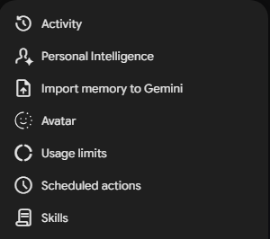
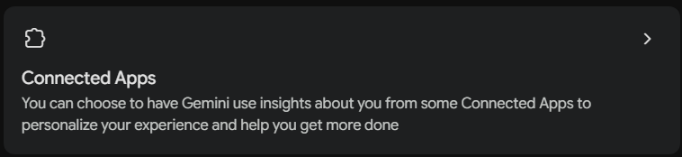
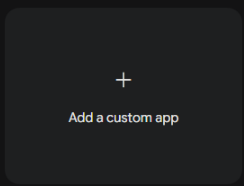
- Choose Custom apps at the top of the page, then Add a custom app.
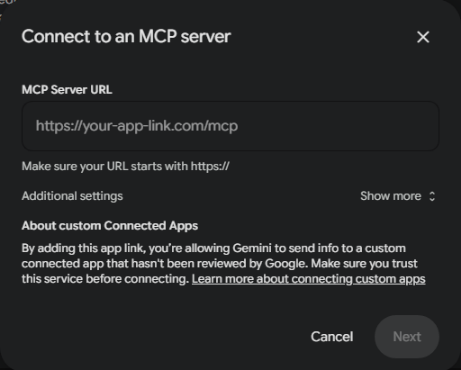
- Paste the connector address into MCP Server URL. It will be published here when subscriptions open. Leave Additional settings closed: 9to95 registers itself. Choose Next.
- Gemini lists the app as [Custom] 9to95 and asks you to confirm that you trust it. The notice is accurate: Google has not reviewed 9to95. It appears for every app a person adds themselves. Continue if you are content with that.
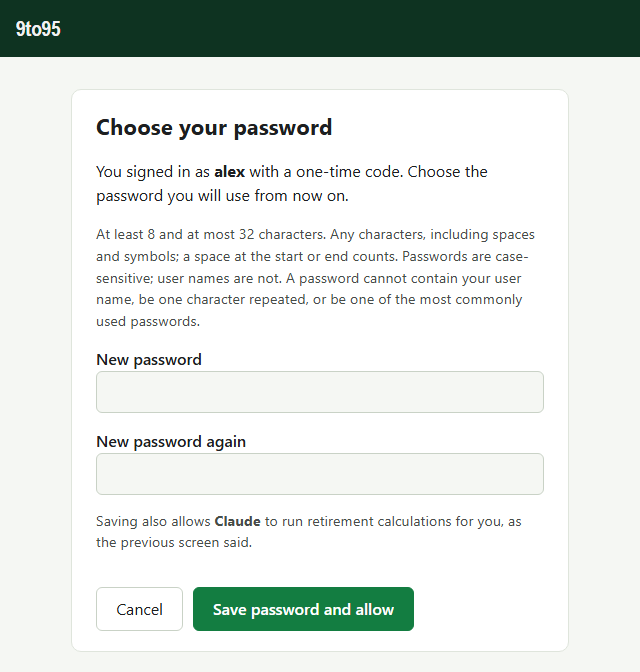
- Gemini opens the 9to95 sign-in page. Check the address bar first: it must show the same site as the connector address you are given when you subscribe. Do not type your password on any other site. Enter your user name and your password, or your one-time sign-in code the first time (a second screen then asks you to choose a password), and choose Allow once. If nothing seems to happen, wait a few seconds rather than choosing it again. Gemini has no field for a key, and none is needed.
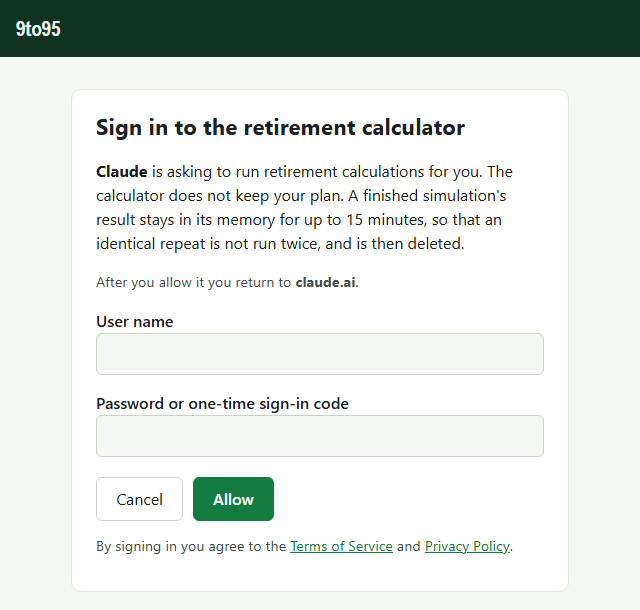
The first time, you sign in with a one-time code, and a second screen asks you to choose your password, twice.
- If Gemini instead asks for a client ID and secret (under Additional settings), its automatic registration did not work; ask support for a client ID and secret, then sign in the same way.
- Use 9to95 from Gemini Spark: ask Spark for a comparison of two retirement plans, and it can use the 9to95 app. In an ordinary Gemini chat the app is not offered (checked 2026-10-05).
If Gemini later says the app needs you to sign in again, reconnect it from Connected Apps and sign in with your password.
Privacy note on Keep Activity
With Keep Activity on, Google keeps your Gemini conversations, including what you type about your finances, under Google's own terms. That is Google's setting, not ours; our Privacy Policy, section 4, explains the difference.
Gemini has no public directory for this kind of app, so this page is the way to find the connector.
Stuck? See support, and say which assistant you used and at what time. Never send your password or a sign-in code.
The steps and requirements here are set by Google and change. They were correct on 2026-10-04; if a menu has moved, check Google's own help.
Claude is a product of Anthropic, ChatGPT of OpenAI and Gemini of Google. 9to95 is not affiliated with or endorsed by any of them. Screenshots are shown to illustrate the steps.